Band Lock Routines: Sweep Bands and Channels
Routines switch between band locks, channel locks, networks and pauses on their own, once or in a loop. Set the steps, test them and start a routine right from the Live screen.
A band lock keeps the phone on one band or channel. A routine switches between locks on its own - handy for sweeping bands or channels while you move around and catching every cell on the way.
What a routine is
A routine is a named list of steps NetMonster runs one after another for one SIM. Every step changes just one thing, everything else stays as the steps before left it. You'll find routines in Band & channel lock on the Routines tab.
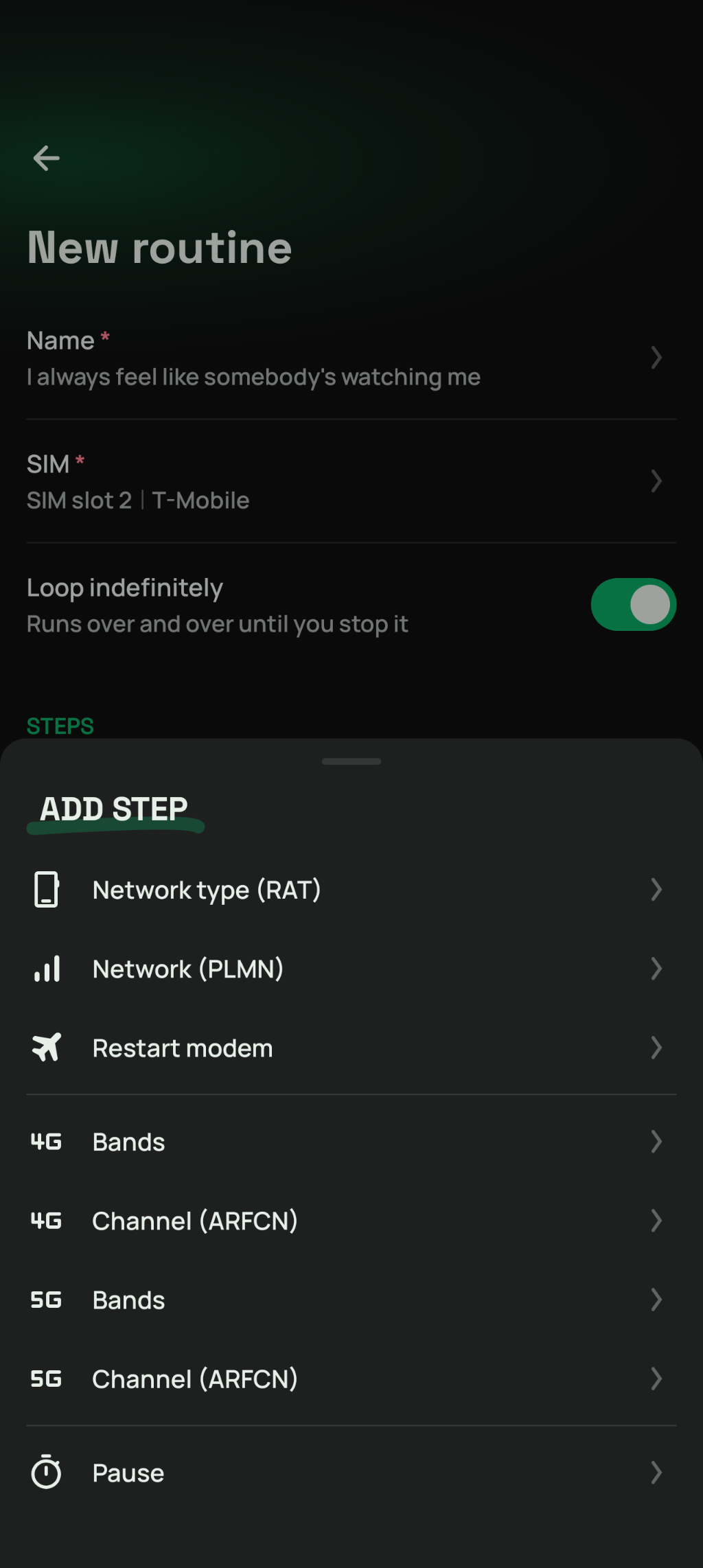
Steps
Bands - up to 4 LTE or 5G NR bands the phone may use.
Channel - a single EARFCN or NR-ARFCN, its band follows from it.
Network type (RAT) - 4G only, 5G only, 4G and 5G, or everything from 2G to 5G.
Network (PLMN) - registers to a network you enter as MCC MNC. When a channel is locked by the steps before, the routine scans the networks around first.
Restart modem - airplane mode on, then off, so the modem looks for a network anew.
Pause - waits 1 to 3600 seconds before the next step.
After a band or channel step, the phone gets the time set in Waiting for the network to get there before the next step goes. A lock followed right by a network step doesn't wait, the network step waits for both. A step that fails is skipped and the routine goes on.
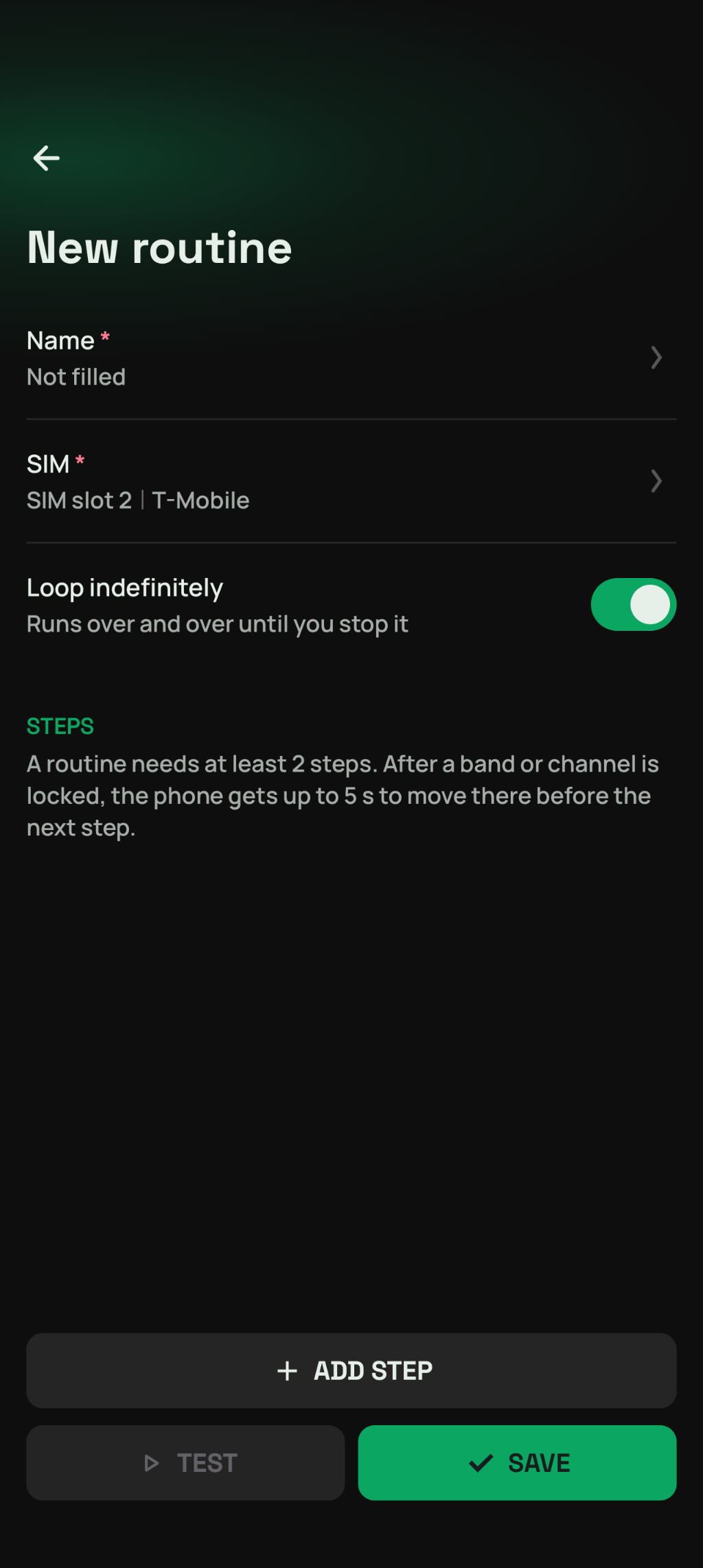
Setting it up
Name - up to 50 characters.
SIM - the routine runs for one SIM. If it's not in the phone when the routine starts, the only other SIM takes over. With more of them, NetMonster asks you to pick one in the editor.
Steps - at least two, add them with Add step and drag them into the order you want.
Loop indefinitely - on, the routine runs over and over until you stop it. Off, it runs once. Either way, everything is unlocked when it ends.
Running, testing and managing
Start or stop with a tap on the routine. Picking another lock or routine stops the one running first.
In the background - a running routine keeps a notification with a Stop routine action. Closing the app stops it.
Test runs the routine once and lists the cells the phone logs meanwhile, the newest first. It works on unsaved changes in the editor too.
Edit, Duplicate and Delete are in the routine's menu.
From the Live screen - with quick band selection on, the band lock button has a Routines tab to start one right away. While a routine runs, the button shows its name.
Routines are part of NetMonster Premium. They lock the modem like any band lock, so the same rules apply: every modem behaves differently and you use them at your own risk.
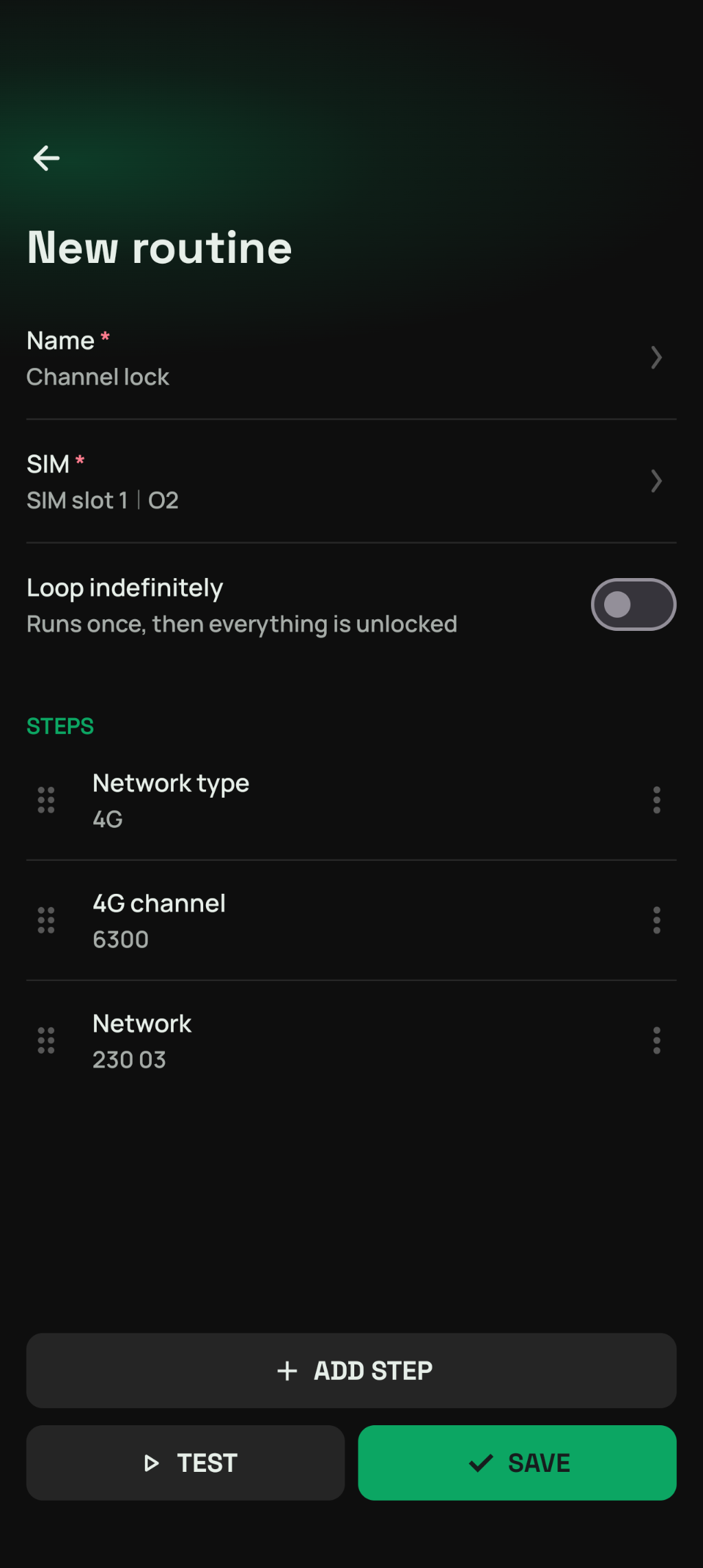
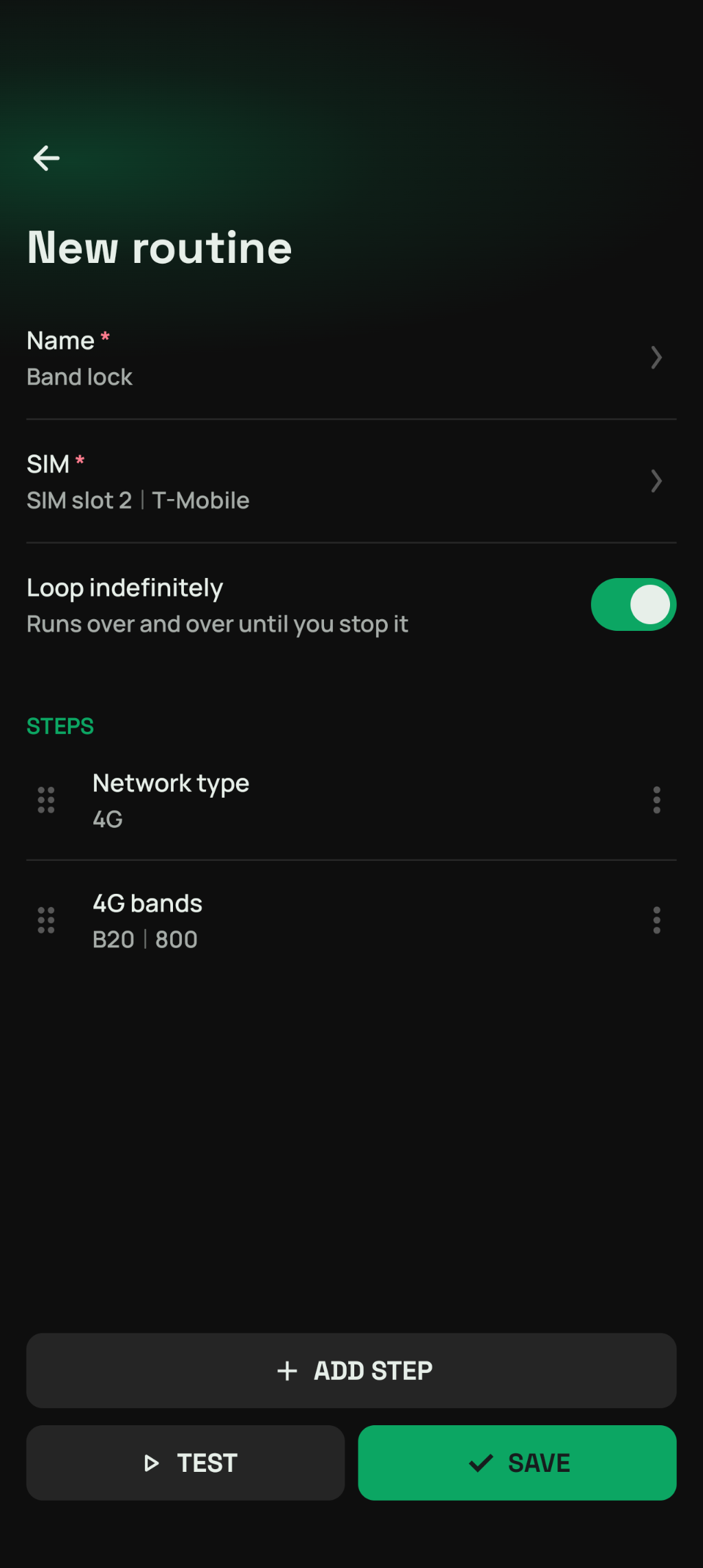
A band lock is a one-off routine
When you apply a lock, NetMonster runs the same kind of steps, in a fixed order, and keeps the result until you unlock. The progress screen shows each of them as it goes. Band and channel locks that are not part of routines are tuned to work the best on all possible devices.
Routines lets you compose whatever you want using atomic modem operations. Experiment and find what's working best on your device.
Here's a quick description what those "band lock" and "channel lock" operations actually do when run outside of routines:
Band lock
Stop a running routine, if there's one.
Allow only 4G or only 5G - with Force RAT on.
Lock the bands.
Scan the networks around.
Register to the network.
Wait for the phone to get there and show the result.
Channel lock
Stop a running routine, if there's one.
Allow only 4G or only 5G - with Force RAT on.
Lock the channel.
One of:
On MediaTek phones the radio restarts, the modem moves to the channel only then.
On other phones - scan the networks around and register to the network.
Wait for the phone to get there and show the result.
In a routine, these pieces are separate steps. A band or channel step locks just the bands or the channel, network type and network are steps of their own - you decide what goes in, in which order and how long to wait in between.